Your cart is currently empty!
Version 1.8.0
The Ruler update!
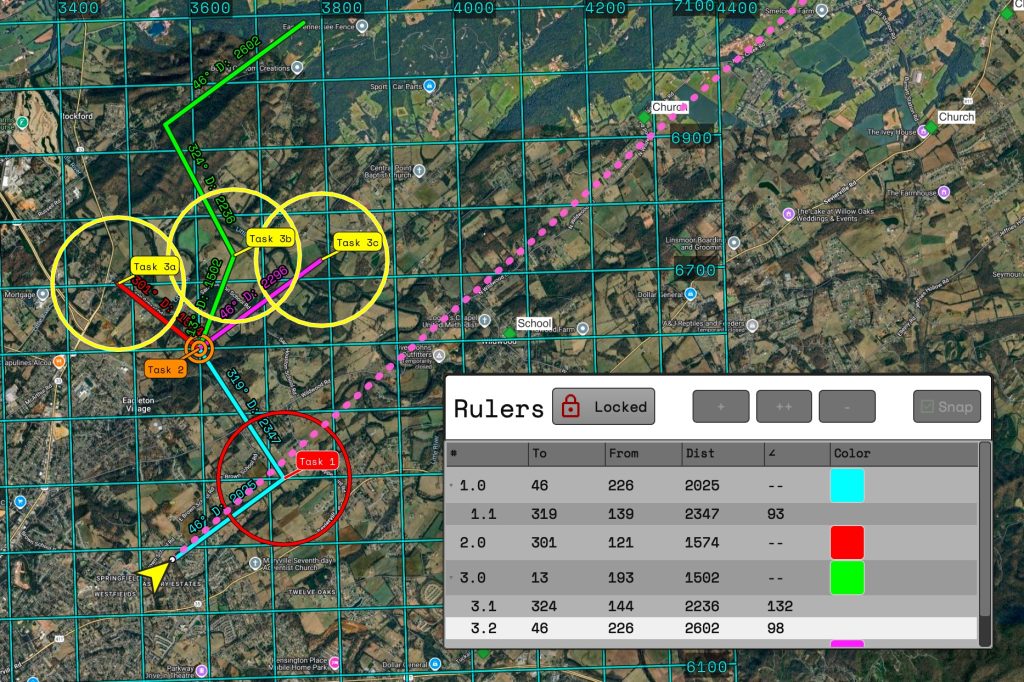
The ruler has received some significant, and much needed, updates. You can now add multiple rulers AND you can add multiple segments to those rulers. A ruler with multiple segments will provide an angle between the segments. When moving a ruler point if you release the point near a waypoint it will “snap” to that points coordinates.
Rulers will show “To”, “From”, “Distance”, “Angle”(if multiple segments), and a custom color.
## 1.8.1

### Fix

- Update position of both new and edit waypoint dialogs when either is moved
- Fix vertical distance calculations
- Changed some font sizes for labels on windlines and waypoints
- Ruler was not using magnetic deviation
- Rulers disappeared if another map tool is selected
- Magnetic deviation didn't allow negative numbers

## 1.8.0

### Added

- New Rulers Dialog added.
- Multiple Rulers can be added.
- Rulers can have multiple segments.
- Ruler ends will snap to closeby waypoints.
- Rulers save to dedicated ruler layer
- Added text under toolbar icons.

### Fix

- Flight winds show correctly
- Wind Lines save between restarts
How it works
The most simple example is creating a single ruler. First click the “Locked” button to unlock the ruler editing.

Click the “+” button and then will add a new ruler using the default color set via the settings.
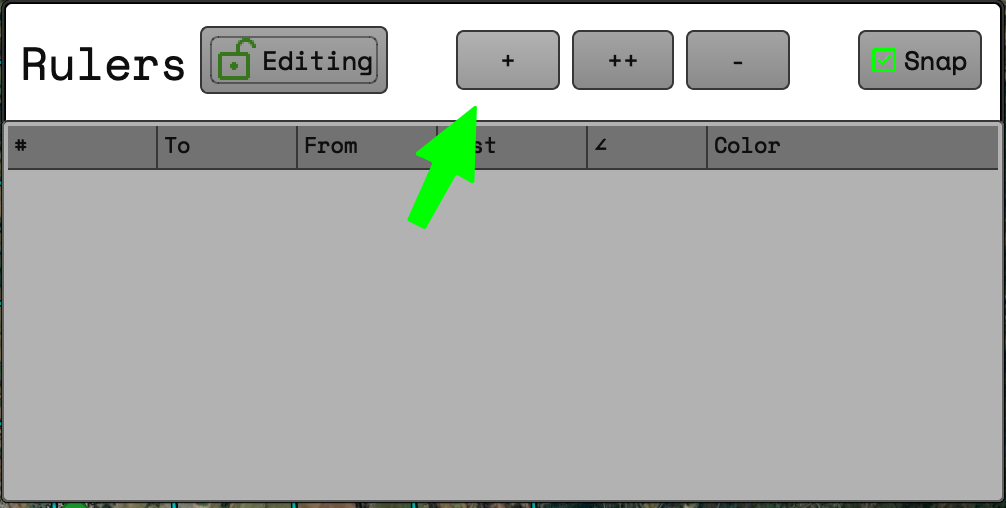
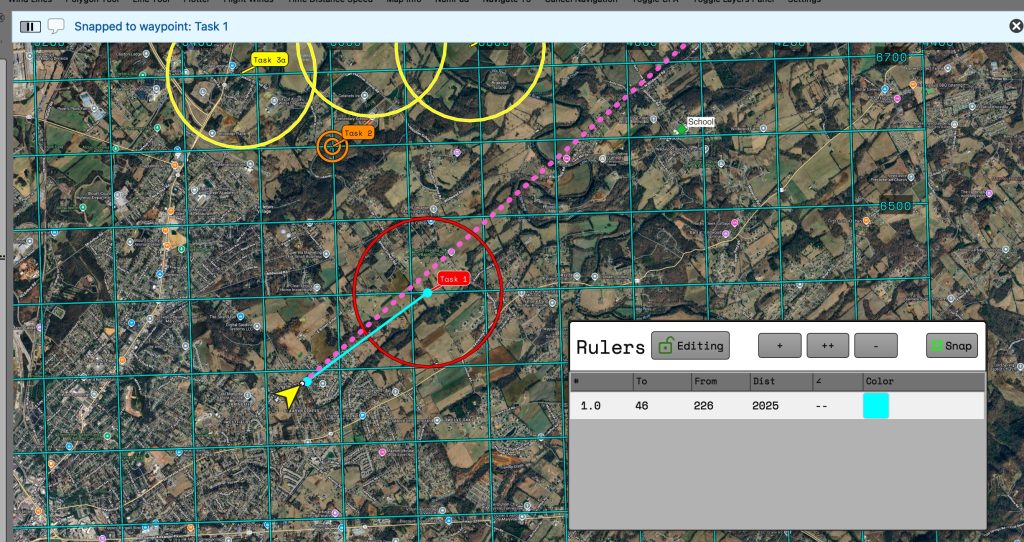
Once the ruler is added you can grab either end to reposition it. When the “snap” button is checked and releasing the point near a waypoint will “snap” the ruler point to match the coordinates of the waypoint. If the “snap” button is unchecked then the ruler point will stay wherever the cursor is released.
Clicking on the color square will allow any color to be selected for the ruler.
Clicking on the “+” button will add an additional ruler to be positioned independently of other rulers.
Clicking on the “++” will append an additional point to the selected ruler. This will add the calculated angled of the 3 points. Additional added points will calculate the angle between subsequent sets of points.
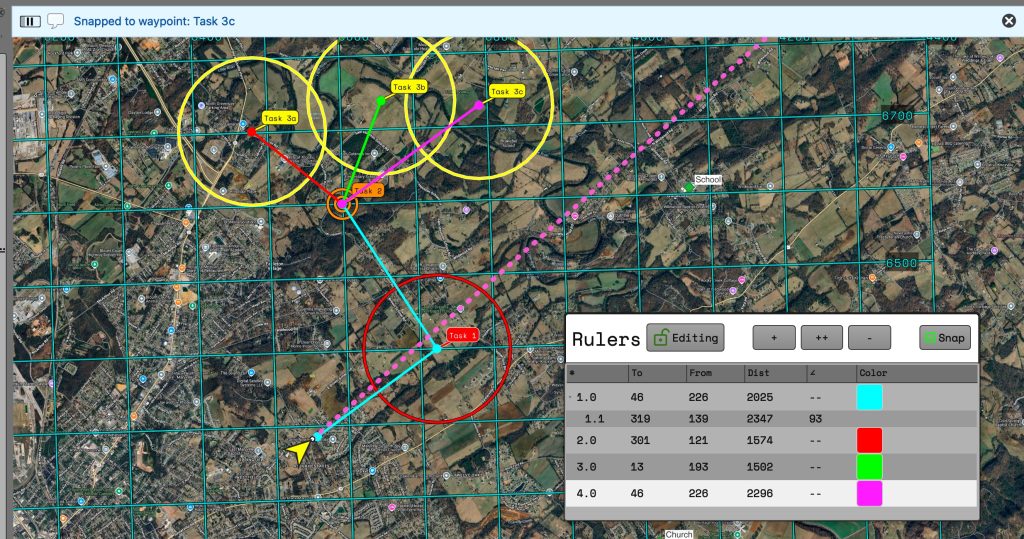
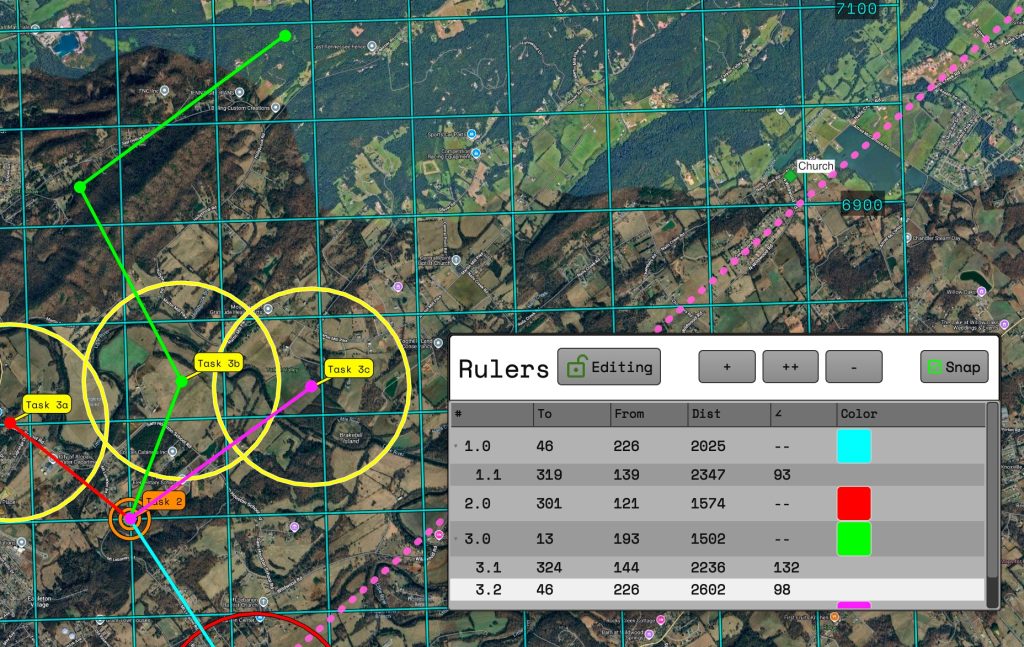
When the ruler dialog is closed the editing mode will be switched to locked or the editing button can be clicked to lock the rulers in place. You can click the button again to edit any rulers.
When locked the rulers will be labelled so the distance and direction information is still available while the dialog is closed.
Leave a Reply