Your cart is currently empty!
Version 1.9.0
The big changes: Multi Waypoint Tracking, Numpad, and Heading Hold Line.
## 1.9.1

### Fix

- Waypoints layer was sometimes not assigned and caused error
- Drawing a northing line across zones would render incorrectly

## 1.9.0

### Added

- Rulers show labels for all locked segments.
- Rulers show circles at vertices in edit mode.
- Color picker for waypoints.
- Custom colors for pilot rings.
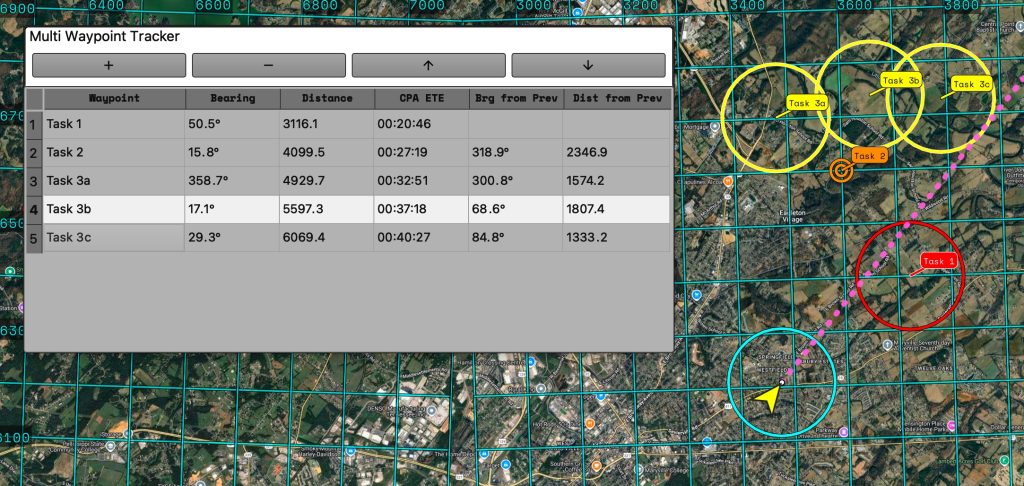
- Multi Waypoint tracking.
- Custom default ruler color.
- Custom default waypoint color.
- Button for getting magnetic variation is now active, will use GPS or center of screen as fallback.
- Button for hiding/showing layers panel
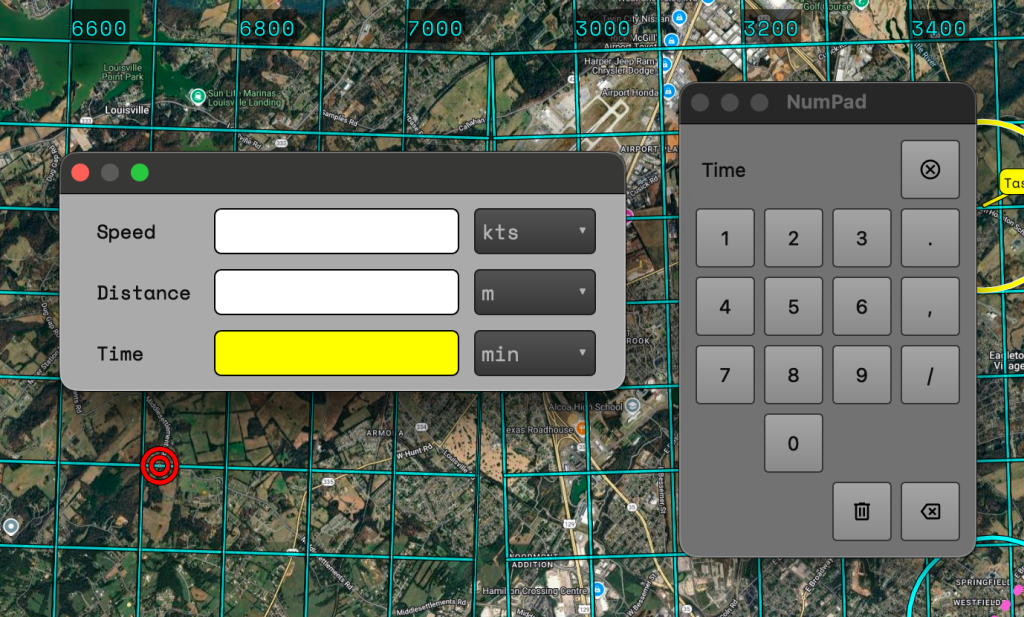
- Numpad for easier entering of numbers
  - Applied to Waypoint Editor, Wind Lines, Polygon Tool, Lines Tool, Time Distance Speed Calculator
- Heading Hold Line option added to Flight Winds.
- Default ring sizes.

### Changed

- Added additional decimal point to "to/from/heading/bearing" values for additional precision.
- Renamed "Ruler" to "Plotter".
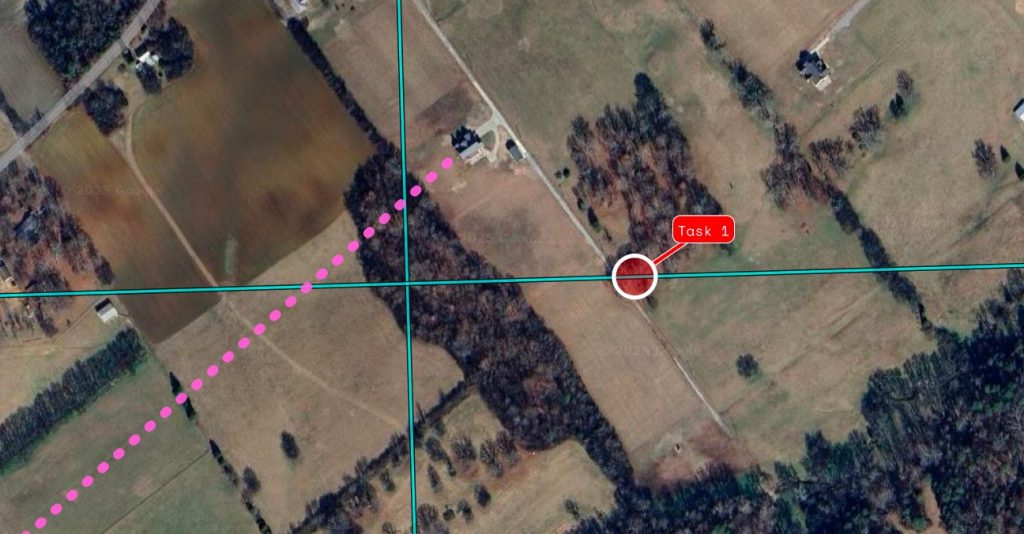
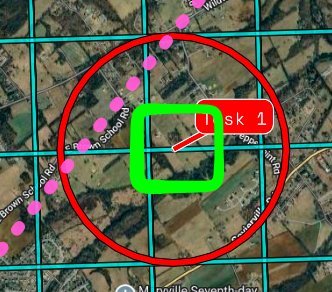
- Trying some different default styling with waypoints. They are now sized to 50m. So zoomed out they will be small(but still clickable). With the added default rings hopefully this can allow for a more precise bearing line to a target.

### Fix

- Pilot rings render correctly.
- Readouts update when waypoint is moved.
- Snapped lines draw across point more accurately.
- Fixed bug with rendering rings if blank ring was given.
- Waypoints created by 4x4 check for adjacent zones correctly.
Multi Waypoint Tracking
Press the “+” button to start adding waypoints. It will stay in “add mode” until you press the “+” button again. The added waypoints will now show their bearing and distance from your current position. It will also show an estimated time to arrive at the waypoint based on your current speed.
When navigating to a target after after your current target the dialog will show the bearing and distance from the previous point in the list.
Number Pad
When the num pad is not showing the default keyboard behavior will occur. If you open the num pad it will block that behavior for fields marked to use the number pad.
Fields that are meant to have alphanumeric characters will NOT accept input from the num pad.
Only fields intended to have number values will utilize the number pad. The field will highlight and the selected input label will be shown on the numpad. PRESSING BUTTONS ON THE KEYBOARD WILL BE BLOCKED ON THAT FIELD WHILE THE NUMPAD IS SHOWN. Closing the numpad dialog will allow normal keyboard behavior.
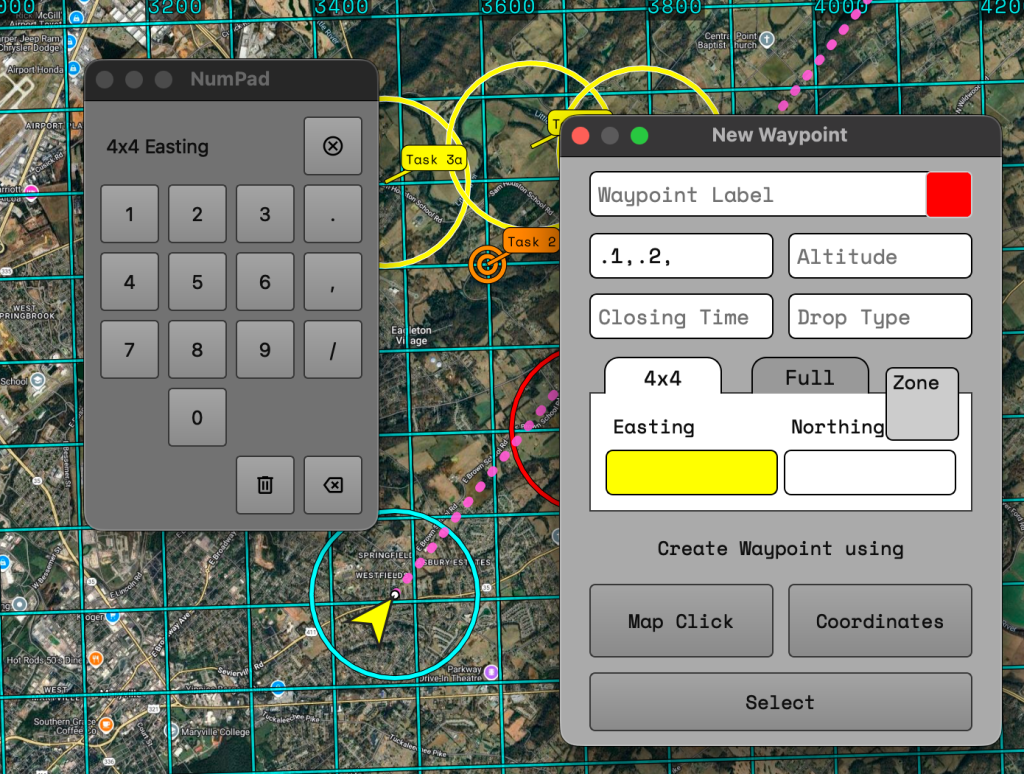
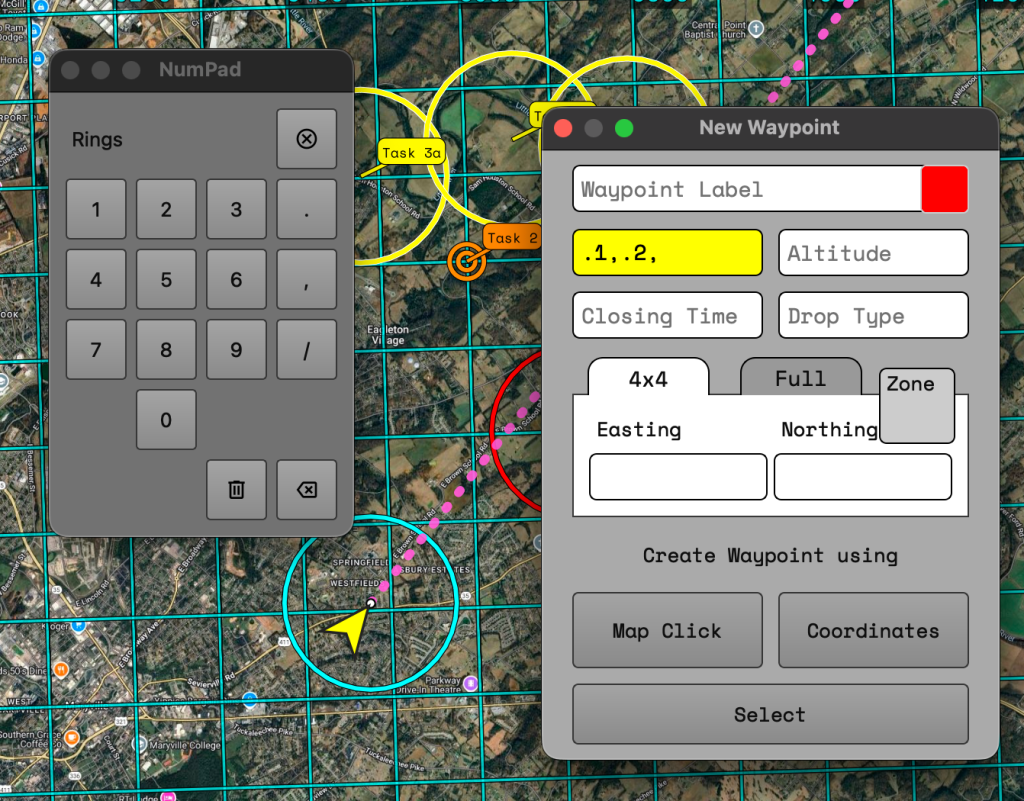
On the bottom row of the numpad there are two buttons. One has a trashcan icon and one has an ‘X’ inside an arrow.
- The trashcan button will clear the contents of the selected field.
- The arrow with the X acts as a backspace.
On the top row all the way to the right is a button with an X inside a circle. This button will close the numpad.
Heading Hold Line
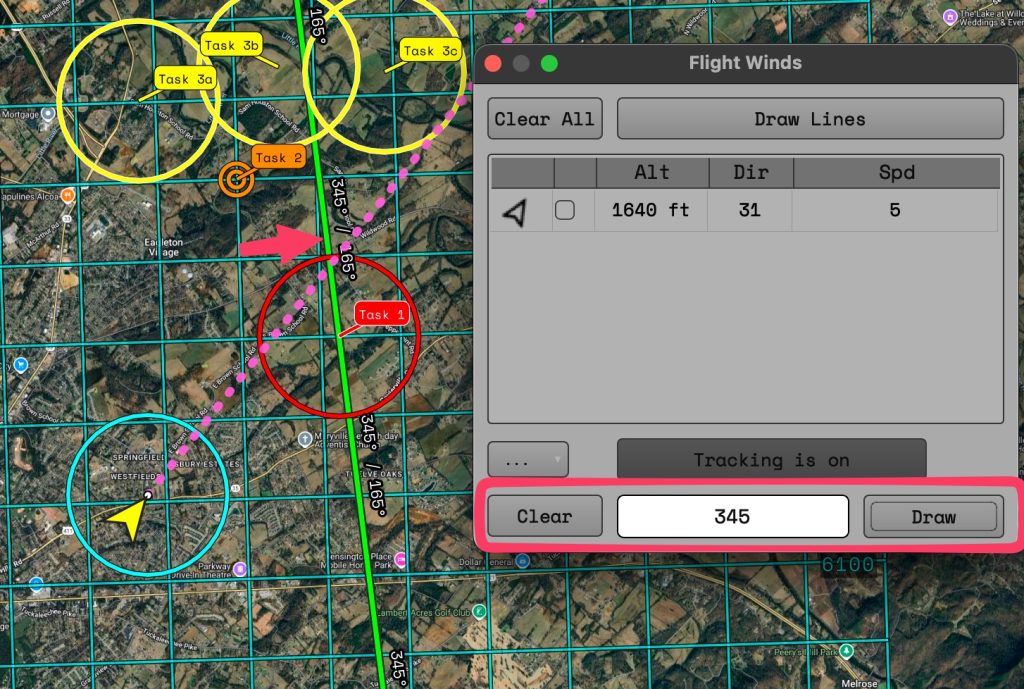
Useful when approaching a target and quickly placing winds provided by crew. Enter a value into the input field, click the “Draw” button, and then click on the map. This will draw the line at the location clicked. If you click near a waypoint the line will be centered over the waypoint.
Additional Changes
Added a button to quickly show/hide the layers panel.

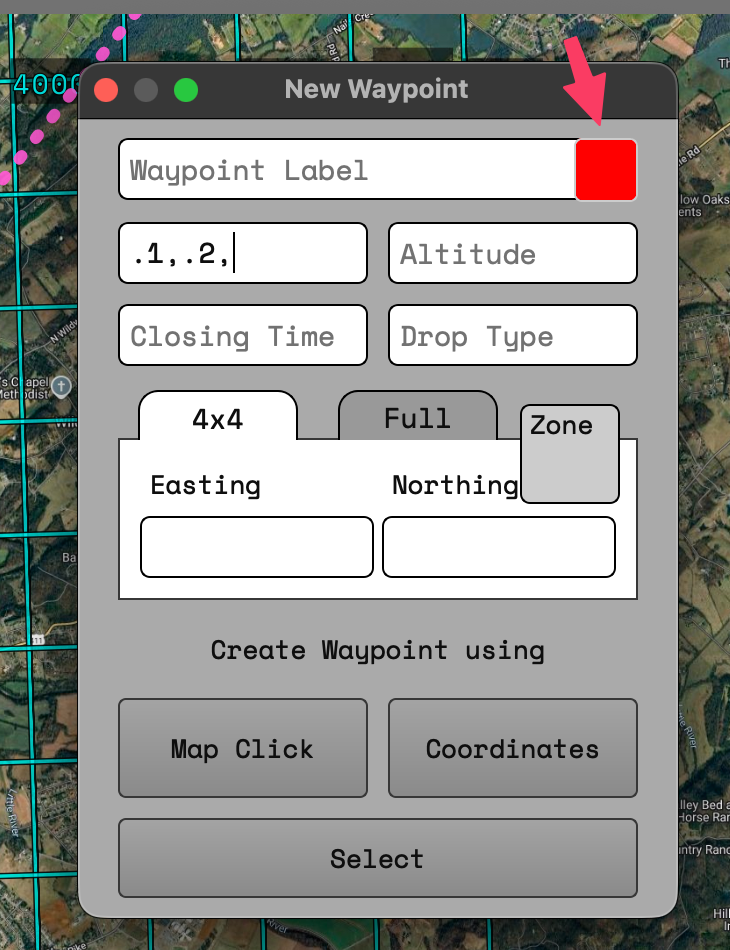
Added a color picker to the waypoint editor.
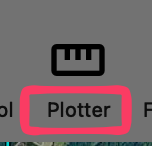
Changed the label of the “Rulers” button to “Plotter”. This better matches the intended use for the tool.
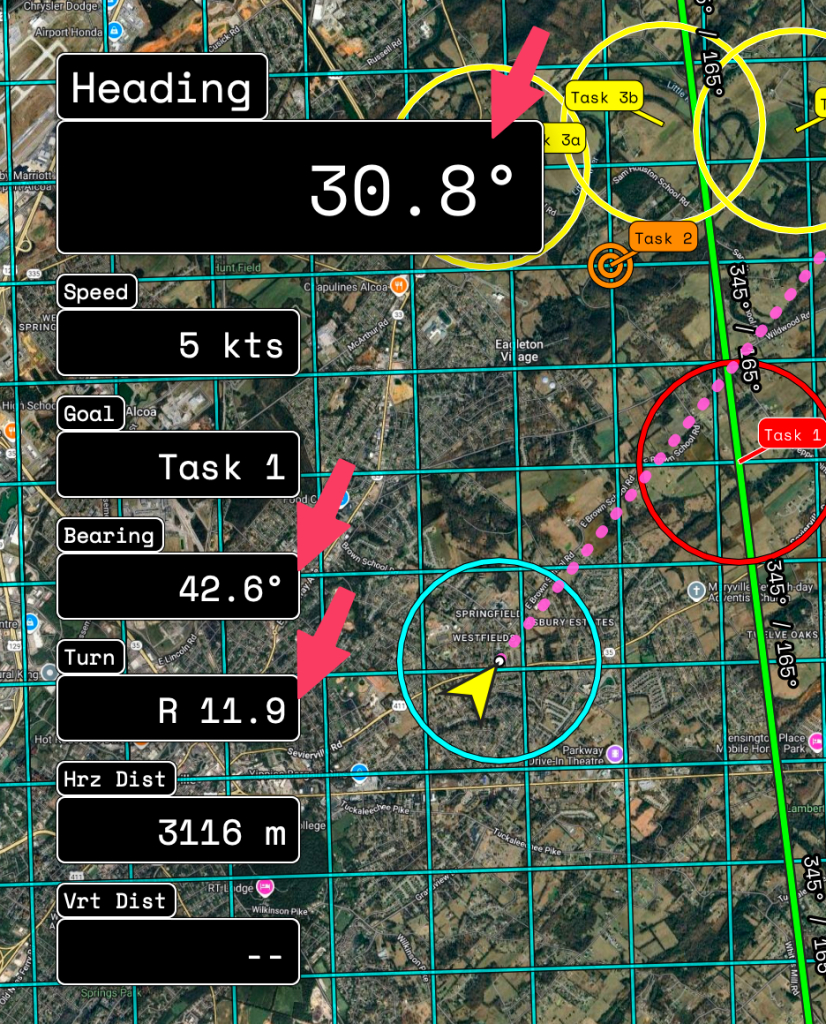
Added the decimal points for appropriate values for MOAR PRECISION.
Speaking of precision. The styling for waypoints has been changed to better show their position when zoomed out. Instead of always being the same size circle the waypoint will now render as a 50m circle. Now if your bearing line is off your desired line it will be easier to see. But don’t worry clicking the waypoints for navigating or editing is still easy with our patent pending(not really) Easy Selection Technology.

New changes in settings!
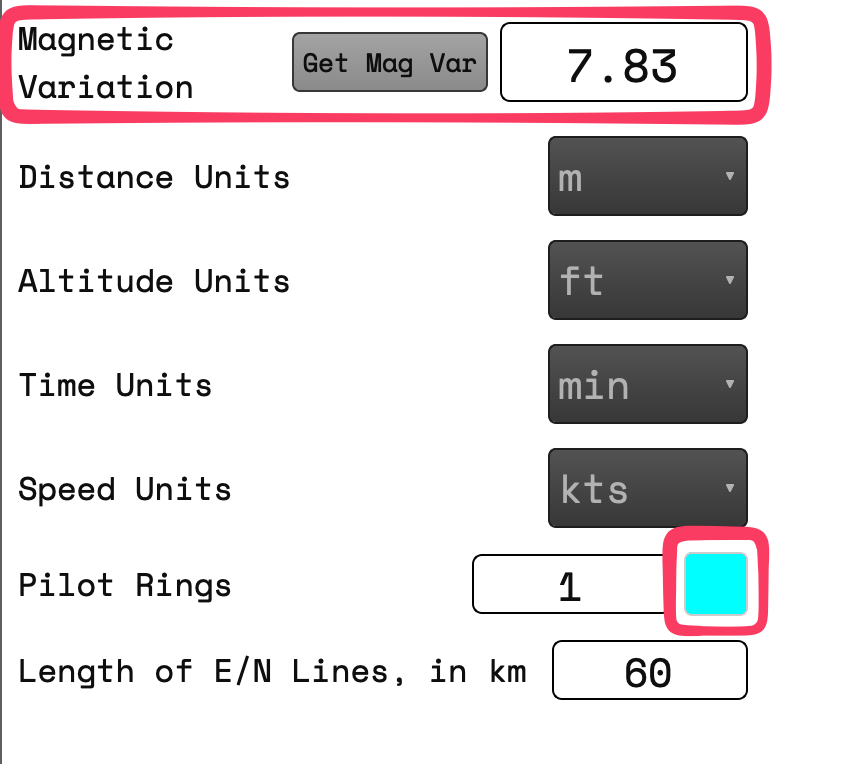
The magnetic variation button is now fully operational. If you have turned on the GPS for LtaGo! your location will be used for determining the magnetic variation. It is important to note that this will include altitude which can affect the result considerably. If GPS is off the coordinates of the center from the current map view will be used with an altitude of ZERO.
Pilot ring colors can now be set.
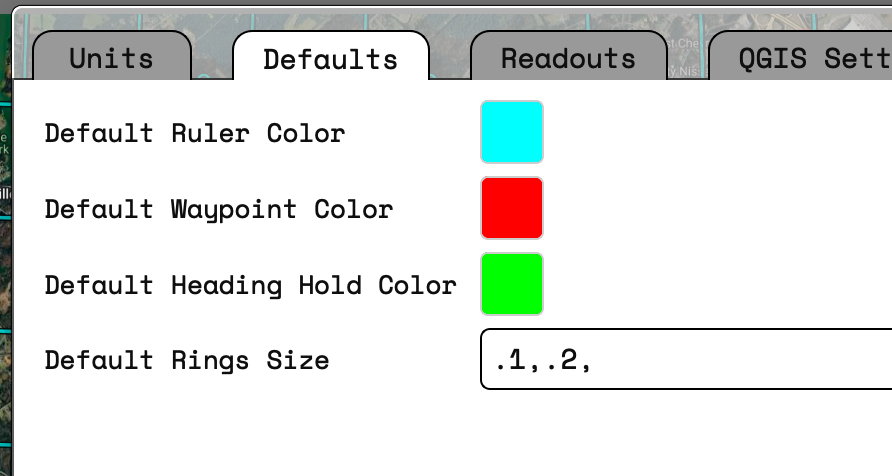
An additional tab for default values has been added. The colors will change the default used colors for the tool in the label, Ruler, Waypoints, Heading Hold. The default rings size will allow you to automatically add a set of rings to all new waypoints you create. These will still be removable or editable on waypoints during creation .
Leave a Reply